Listening to podcasts, interviews, musical performances, and lecture series on YouTube is part of daily life for millions of people. However, keeping video streams running continuously drains battery life and burns through mobile data. If you only care about the spoken dialogue or the musical composition, extracting the soundtrack as a dedicated audio file is the most practical solution.
Many traditional conversion utilities require desktop program installations or flood your screen with aggressive pop-up advertisements. SaveYTmp3 approaches audio extraction differently. By handling media processing on remote cloud servers, our YouTube to MP3 converter lets you transform public videos into clean audio files directly inside your regular web browser.
Why Dedicated MP3 Extraction Beats Screen Recording
Smartphone users frequently attempt to record their screens to preserve audio from video clips. While screen recording seems quick, it introduces significant acoustic defects. Operating system screen recorders capture ambient room noise if microphone pass-through is active. They also compress dynamic range and frequently drop stereo separation into flat mono channels.
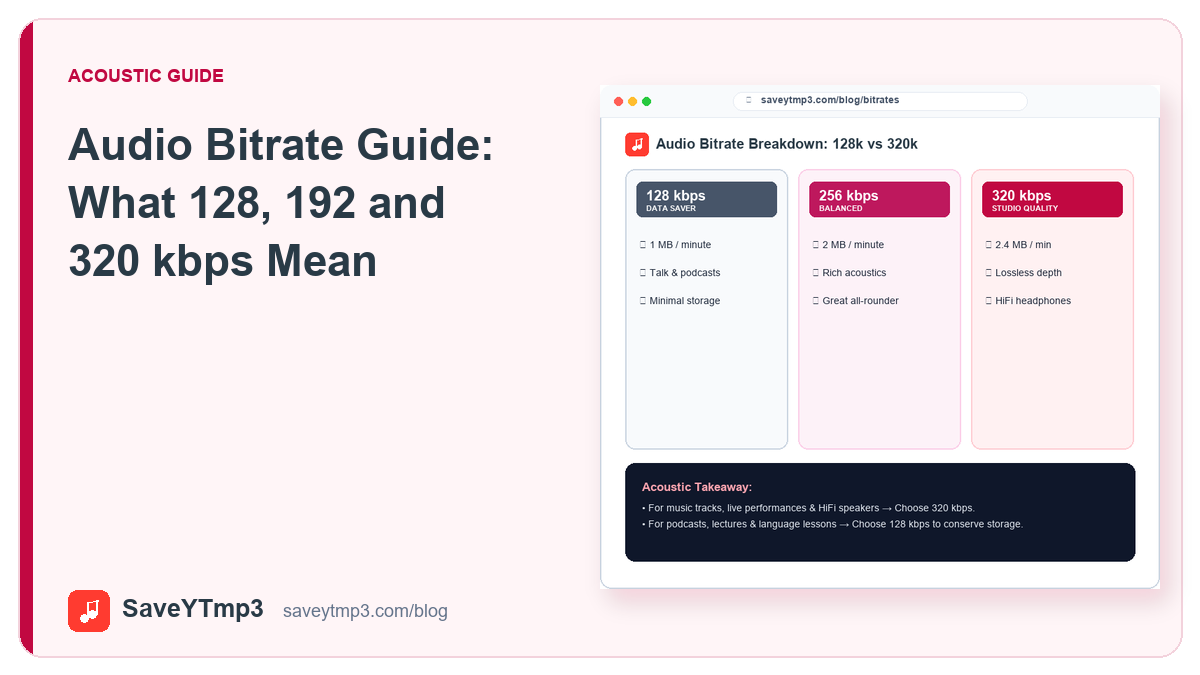
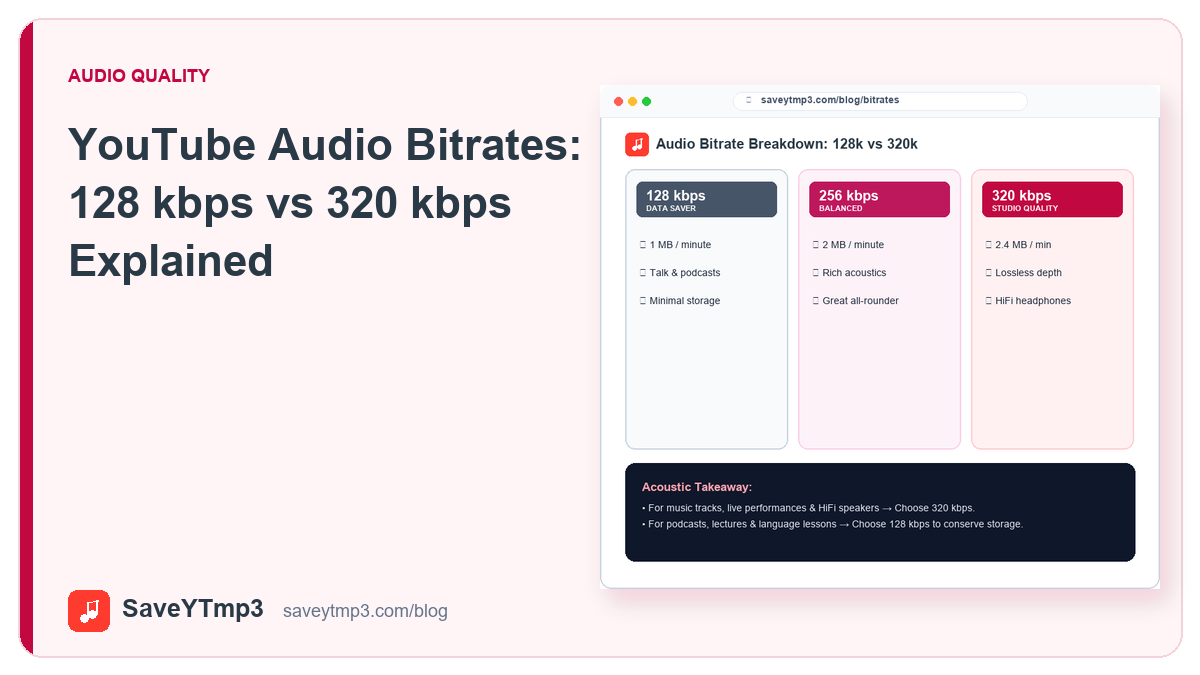
Direct digital extraction pulls the original encoded audio stream straight from the media delivery server. The resulting MP3 file retains complete acoustic separation across left and right stereo channels. Frequencies above sixteen kilohertz stay intact rather than getting muffled by analog phone speakers. For deep analysis of acoustic differences, explore our comprehensive audio bitrate guide.
Step-by-Step Guide to Converting YouTube Videos
Transforming a video link into a standalone audio file takes under thirty seconds. Follow these steps on any computer, tablet, or smartphone:
- Find Your Source Video: Open YouTube in your browser or application. Locate the public video, speech, or music track you wish to convert.
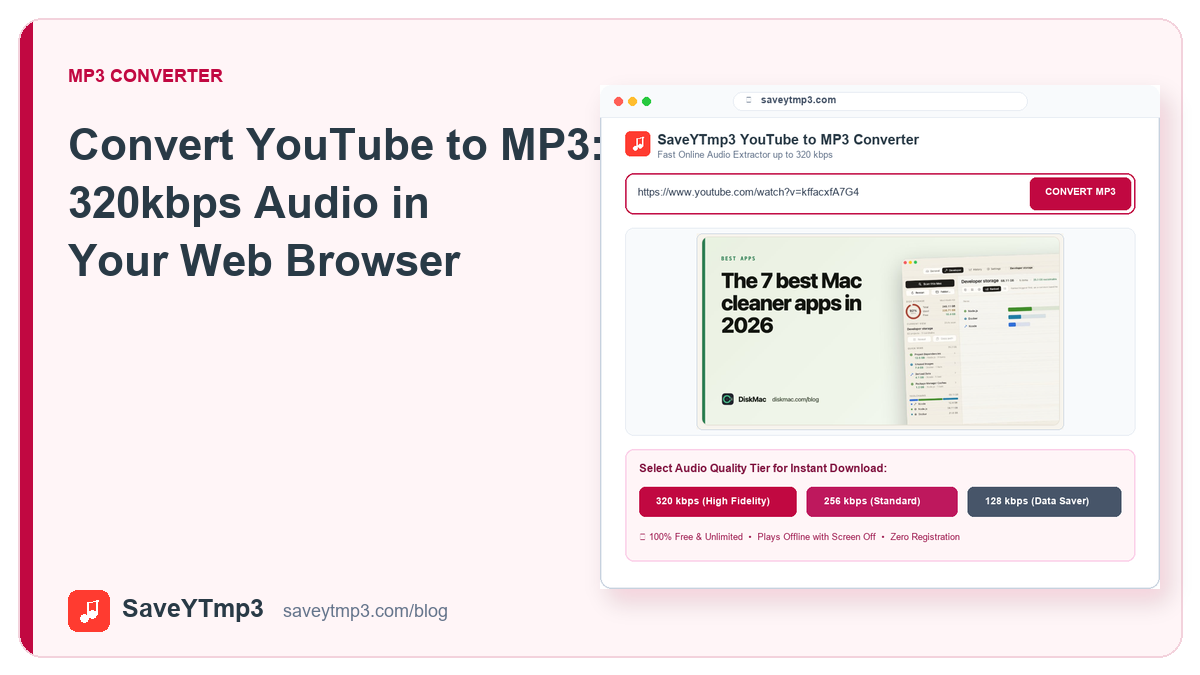
- Copy the Video Address: Click the Share icon beneath the video player and tap Copy Link. Both standard desktop addresses and shortened youtu.be links work identically.
- Access SaveYTmp3: Navigate to the SaveYTmp3 conversion tool in any browser. Paste your copied address into the primary input box.
- Select Audio Bitrate: Choose your target audio fidelity. Options include 320kbps for maximum fidelity, 256kbps for balanced listening, or 128kbps for compact file storage.
- Save to Local Storage: Click the conversion trigger and allow the cloud server to process the track. Tap the final download button to store the MP3 on your device.
Understanding Audio Codec Processing and Conversion Integrity
Digital audio conversion involves complex algorithmic restructuring of acoustic data packets. When a video is submitted to SaveYTmp3, our server decodes the underlying audio stream without running unnecessary digital amplification or artificial equalizers. This transparent handling ensures that original dynamic headroom remains untouched.
Cheaper conversion utilities frequently apply aggressive peak limiters that clip transient drums and acoustic guitar attacks. SaveYTmp3 uses high-precision floating-point decoding pipelines. As a result, subtle vocal inflections and acoustic room reverbs translate faithfully into the destination MP3 file without harsh digital sibilance.
Organizing Your Offline Audio Library
Once you begin building an offline audio archive, maintaining systematic file organization preserves productivity. We recommend renaming downloaded MP3 tracks with standard metadata tags, including creator name, recording date, and topic category.
Modern media player applications on both desktop and mobile platforms read ID3 tags to group tracks into albums and playlists. By storing audio files in designated subject folders, you can build custom study mixes for gym workouts, long commutes, and offline work blocks without needing active cellular data.
Managing Audio Files on iOS and Android Devices
Mobile operating systems handle downloaded MP3 files through specific file management workflows. Understanding where your audio lands keeps playback smooth on the go.
On Apple iPhone and iPad hardware running Safari, downloaded files transfer to the Files application under the Downloads directory. From there, you can play the MP3 in the background with the screen locked. You can also share the file into third-party music players such as VLC or cloud drives.
On Android phones using Chrome, MP3 tracks download directly into your device storage. Most Android music apps immediately index the new audio file into your local library, making it playable through offline widgets and car infotainment systems.
Acoustic Advantages for Spoken Word and Music
Voice-driven media such as university lectures, technical seminars, and language lessons benefit immensely from standalone MP3 storage. When reviewing lengthy two-hour conference presentations, having a lightweight twenty-megabyte audio file is far more convenient than managing a two-gigabyte video stream.
You can listen at accelerated playback speeds inside your favorite podcast player, skip silent pauses, and insert digital bookmarks. For music enthusiasts, archiving rare acoustic sets and unreleased live jam sessions ensures your favorite musical moments remain accessible even if a channel re-edits or unlists content later.
Legal and Copyright Boundaries for Audio Downloads
Audio conversion technology must be utilized responsibly within established legal frameworks. YouTube hosts a diverse spectrum of content, from public domain recordings to strictly protected commercial releases:
- Personal and Creator Content: Downloading your own published videos or backing up channel archives is completely legitimate.
- Creative Commons Licenses: Videos published under CC-BY licenses allow audio extraction and sampling provided you credit the original creator.
- Fair Use for Education: Short audio excerpts used for critique, commentary, research, and classroom discussion generally fall under fair use doctrines.
- Commercial Music Restrictions: Ripping copyrighted music albums for commercial distribution or re-uploading without authorization violates intellectual property laws.
SaveYTmp3 operates as a neutral technological utility. We encourage users to verify license terms and support content creators through official memberships and merchandise channels.
Share this post: